Step 1: Install Java and set path
sudo su -
yum update -y
yum install java-1.8\* -y
java -version
find / -name javac
ls -la
vi .bash\_profile
(Press i)
JAVA\_HOME=/usr/lib/jvm/java-1.8.0-openjdk-1.8.0.252.b09-2.amzn2.0.1.x86\_64
PATH=$PATH:$JAVA\_HOME:$HOME/bin
(Press esc)
:wq!
exit
sudo su -
echo $PATH
Step 2: Download & Install Jenkins on to EC2 instance
wget http://mirrors.jenkins.io/war-stable/latest/jenkins.war
java -jar jenkins.war
Step 3: Get the default administrator password
vi /root/.jenkins/secrets/initialAdminPassword
Step 4: Open the browser and login to Jenkins console
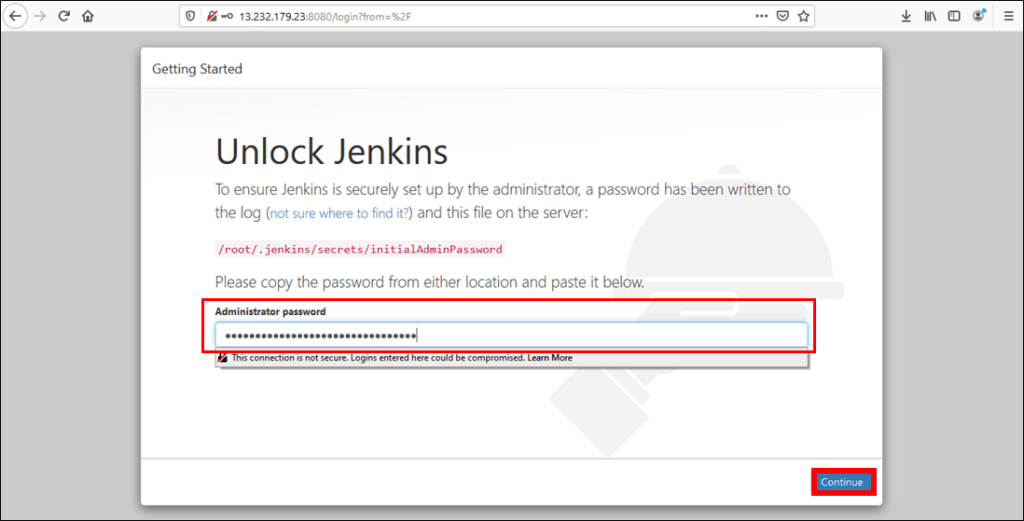
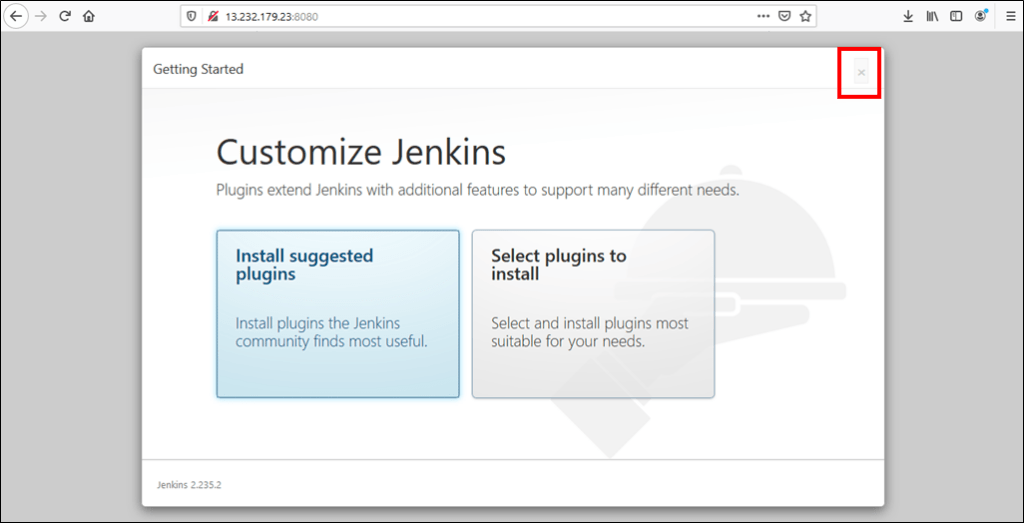
Step 5: Skip plugins installation – On Customize Jenkins wizard click on the cross as we do not want any plugins right now
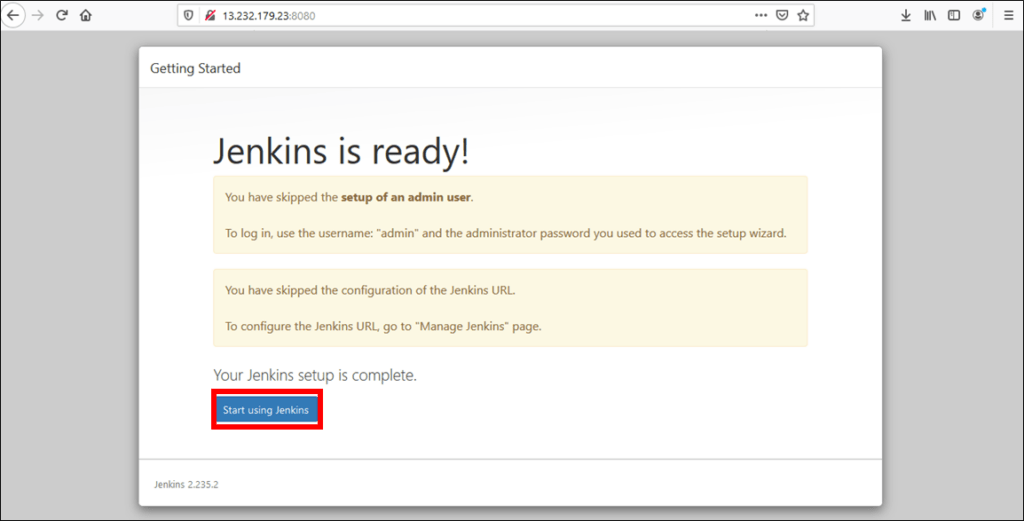
Step 6: Now Jenkins setup is completed, finally click on Start using Jenkins
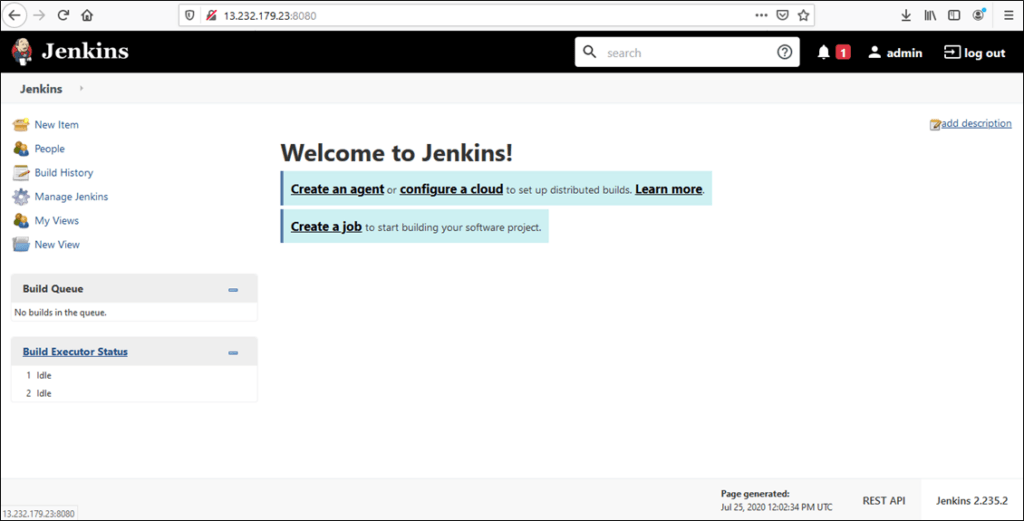
Step 7: Jenkins Dashboard
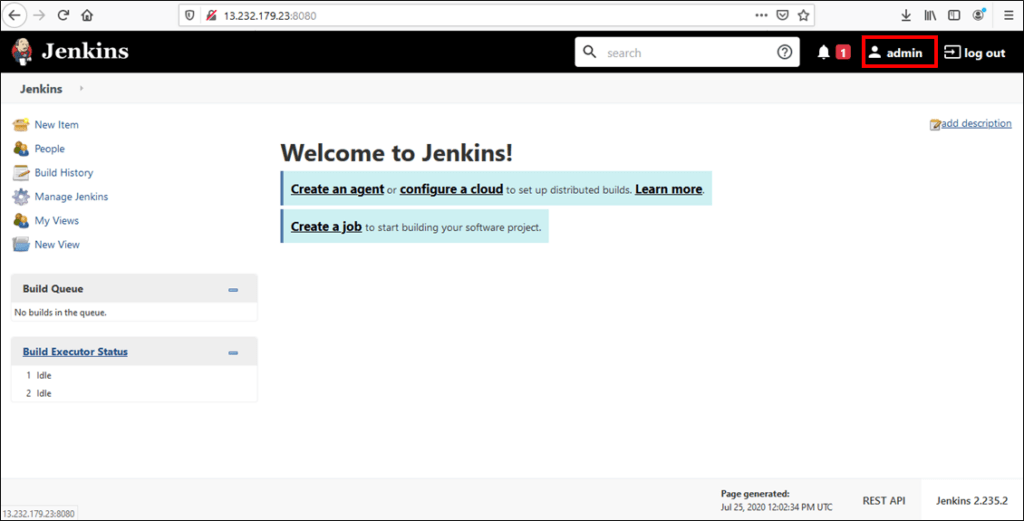
Step 8: Change default admin Password
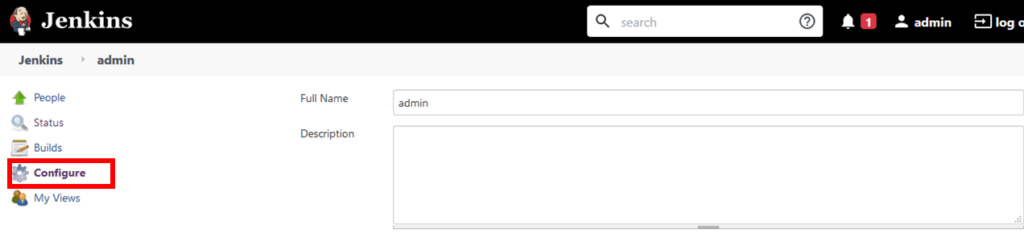
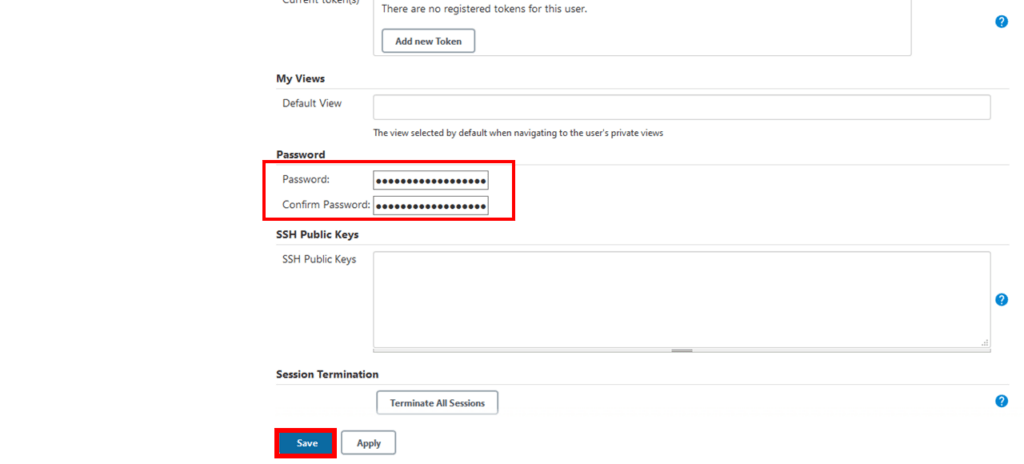
- Set your own password and click on Save